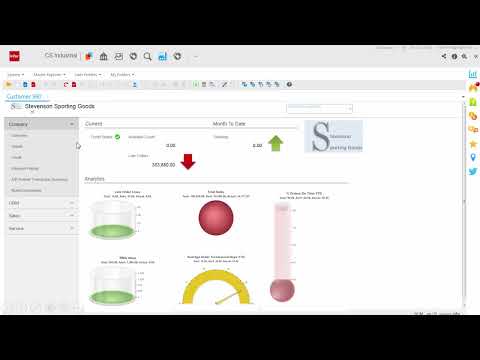
How to Import Data into NetSuite | CSV Import Tutorial + Common Errors Explained (Step-by-Step)
In this video, you’ll learn how to do data imports in NetSuite using the CSV Import Assistant — from start to finish. Whether you’re migrating data from your legacy system or just uploading invoices, customers, or sales orders in bulk, this NetSuite data import tutorial will show you exactly how to do it correctly and avoid common mistakes.
I’ll walk you through how to import sales orders into NetSuite, fix common CSV errors, correctly map fields, and make sure your data uploads smoothly every time. You’ll also learn my pro tip for running large imports with zero errors — a huge time-saver for NetSuite admins and implementation teams.
🧭 What You’ll Learn
-
How to import CSV records into NetSuite
-
The difference between Add, Update, and Add-or-Update imports
-
How to use the NetSuite Import Assistant step-by-step
-
How to correctly map fields for transactions, customers, and items
-
Fixing common CSV import errors (dates, currency symbols, blank fields, commas)
-
How to format data for a clean and successful upload
-
Pro tip: How to test imports safely before uploading all your data
⚙️ Tools & Concepts Covered
-
NetSuite Setup → Import/Export → CSV Import
-
Transaction imports (Sales Orders, Invoices, Customers)
-
Field Mapping and Required Fields
-
Formatting rules for dates, currency, and text
-
Troubleshooting CSV import errors
-
How to handle multi-line transactions in one import
💡 Perfect For
-
NetSuite beginners learning how to upload data
-
ERP implementation teams doing first-time data migration
-
Admins and consultants managing NetSuite configuration
-
Accountants and operations teams importing bulk records
-
Anyone looking to save time and reduce data errors in NetSuite